How do I create a partition?
Last updated: November 25, 2025
Creating a partition
Step 1: Navigate to the Partition home page and click Add new.
Step 2: Give your Partition scheme a name
Step 3: Click + Add Partition
Step 4: Give your Partition a name e.g. PEAK
Step 5: Configure the temporal expression
We recommend getting started with our AI expression generator, alternatively you can select from a library of partition types to use as a template.
Click AI expression generator
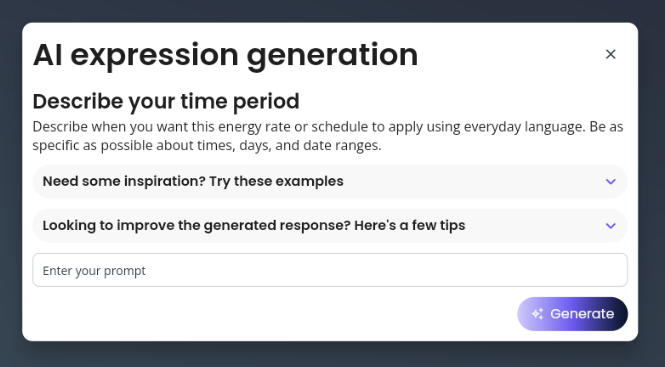
Enter your prompt that defines the partition you would like to configure. E.g. 7am to 9am. Or From 6am to 9am and 4pm to 7pm in the months through January to April. Hit enter or click generate
The generated expression will populate for you.
IMPORTANT: Review the generated expression, sometimes it will be wrong and you may need to make changes or start again.
Step 6: Add more Partitions as required.
Step 7: Click Save partition
Descriptions make your partition much easier to read, we strongly reccomend using them and keeping them clear and simple.
Tips
When defining your final partition, you can always default to all other times. An example of this temporal expression is below:
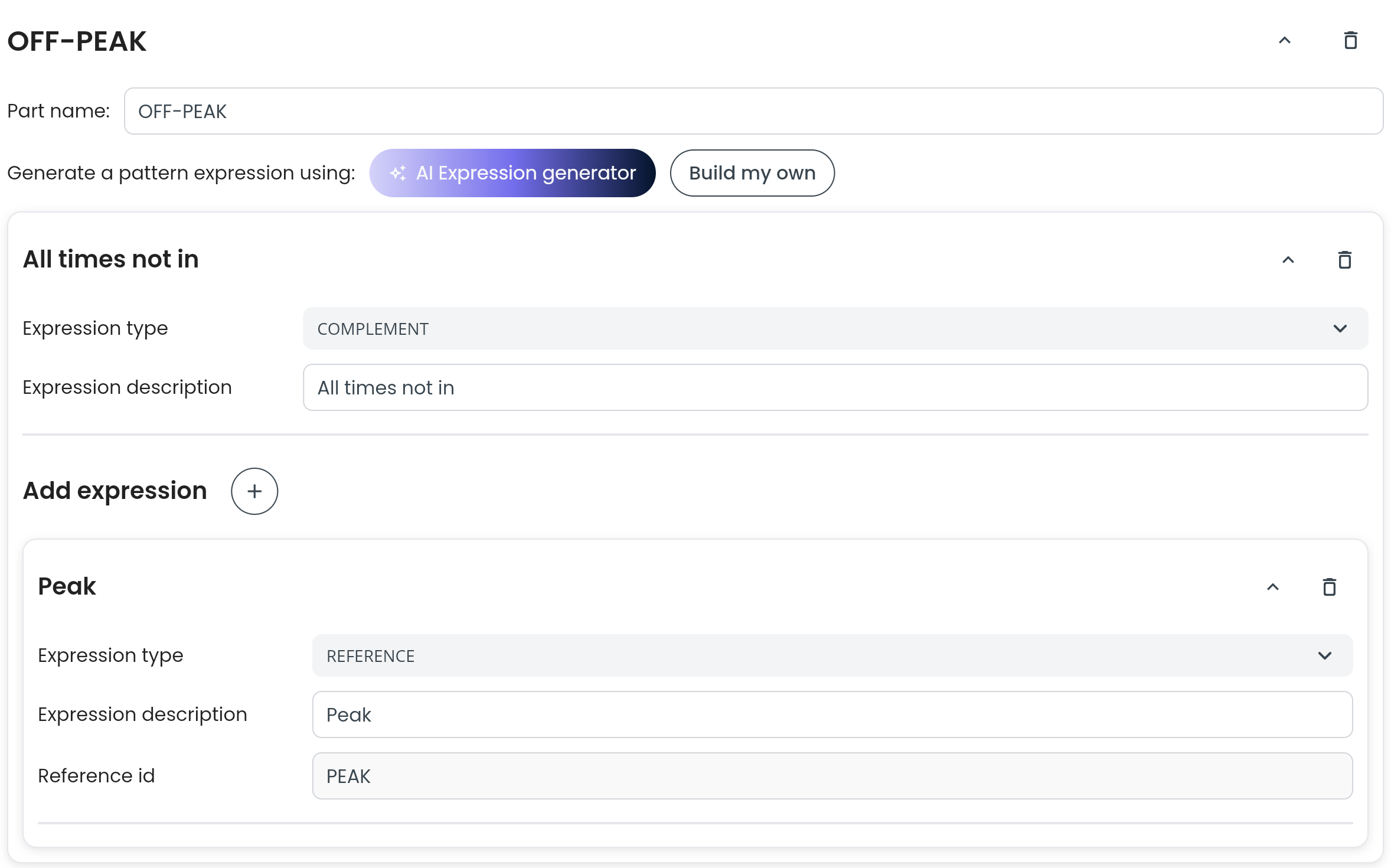
Alternatively, use the AI expression generator and state for example "All times not in the PEAK partition". Or "All times not in the PEAK OR SHOULDER partitions"