Importing and Exporting Configurations
Last updated: November 25, 2025
This article explains how to export Charge Schedule, Partition, or Rate Set configurations from Factor, and how to import them into another environment.
Importing existing configurations are a quick way to get ready for running forecasts, and trial your configurations in a test environment before using them in production.
Importing a rate set with temporal rates? Make sure to read the final section of this article.
Exporting Configurations
Go to the relevant configuration screen
Example: To export a Partition configuration, navigate to Partitions from the main menu.
Choose what you want to export
From the list page: Locate the configuration in the table and click the Download icon (↓) on the right-hand side of the row.
From the details page: Open the configuration and click the Export button.
Download the configuration file
For most entities Factor will generate a JSON file containing the configuration. For rate sets, you'll get to choose between JSON and CSV.
The file will be automatically named according to the configuration type.
Share or reuse as needed
You can keep the file as a backup, share it with colleagues, or upload it into another Factor environment.
Importing Configurations
Go to the relevant configuration screen
Example: To import a Partition configuration, navigate to Partitions.
Start the import
Click the Import button.
Follow the on-screen instructions and upload your JSON file.
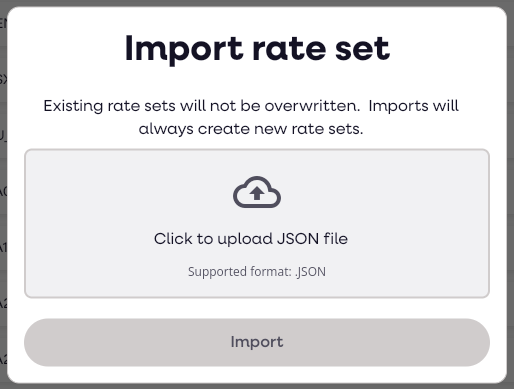
Important
New configurations only
When importing JSON, Factor automatically removes the
idfield (e.g.partitionId,rateSetId) from the JSON file.This prevents accidental overwriting of existing data.
As a result, imports always create a new configuration rather than updating an existing one.
You don't need to remove these ids from your JSON before importing data.
Importing rate set CSV
CSV exports and imports are available for rate sets. This allows you to bulk edit data and import accordingly. When importing CSVs, the
idfield is NOT removed, this means you can bulk update an existing rate in your environment.
Importing temporal rates
Some Rate Sets may contain temporal rates, these reference an existing Partition Scheme in Factor.
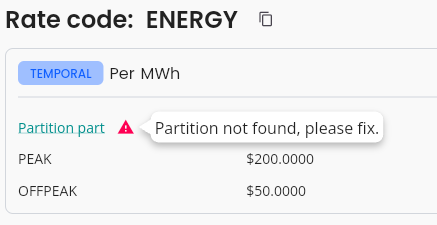
If you're importing a Rate Set which references a partition you will need to edit the Rate Set after import in order to reference the correct partition. When viewing your rate set if you see the red icon shown below, you need to update your rate with the correct partition.
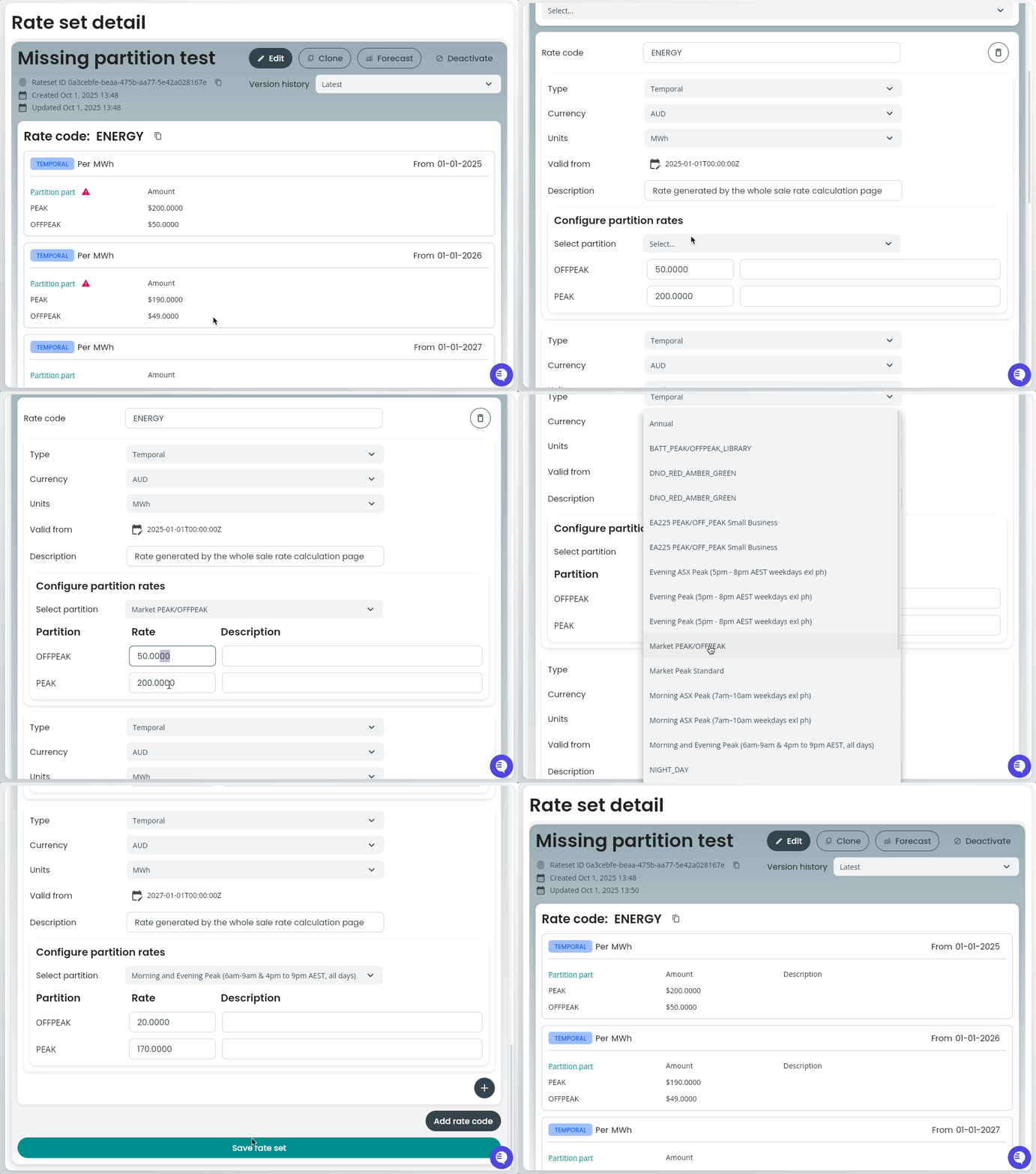
Importing nested Charge Schedules or Rate Sets
Where your configuring "includes" other nested configurations, you'll need to update these references after import.