Using Price Indices
Last updated: April 21, 2026
A Price Index is a dataset that defines the value of a price at regular time intervals across a specified time range. Each point on the index represents the price applicable for a particular interval, allowing systems to model, forecast, or apply prices that fluctuate over time.
Rather than representing a single static price, a price index captures temporal variation, enabling accurate representation of markets where prices change frequently due to supply, demand, or market conditions.
A Price Index can be historical, or a forward forecast.
Price indexes are referenced in Rate Sets.
Creating a Price Index
Supported Price Index file formats
There is currently one supported file format for importing price indices. This format is a csv format with the following header row:
periodStart,periodEnd,priceCurrency,price,kiloW-HRperiodStart is inclusive and must be in UTC time format, e.g.
2023-12-31T14:00:00.000ZperiodEnd is exclusive must be in UTC time format, e.g.
2023-12-31T14:05:00.000Zand representCurrencies are represented using a namespaced ISO 4217 currency code format e.g.
fibo-fnd-acc-4217:AUDprice is the price for the defined intervalPrice value supports up to 10dp.
kiloW-Hr is the volume of kWh the price purchases. E.g. for a per MWH price, this field would be set to 1000
Example row:
2023-12-31T14:00:00.000Z,2023-12-31T14:05:00.000Z,fibo-fnd-acc-4217:AUD,57.98,1000Price index validations and common file issues
There must be no time or date gaps in the data uploaded.
There must be no overlaps between the dates or times or rows uploaded.
There must no duplicate date or times.
All price index uploads for existing price indices are a full replacement, the upload is not additive.
Steps to create a price index
Navigate to the Price Index home page
Select Add new and enter a price index name. Note, this name will appear in drop down selections elsewhere in the Factor UI:
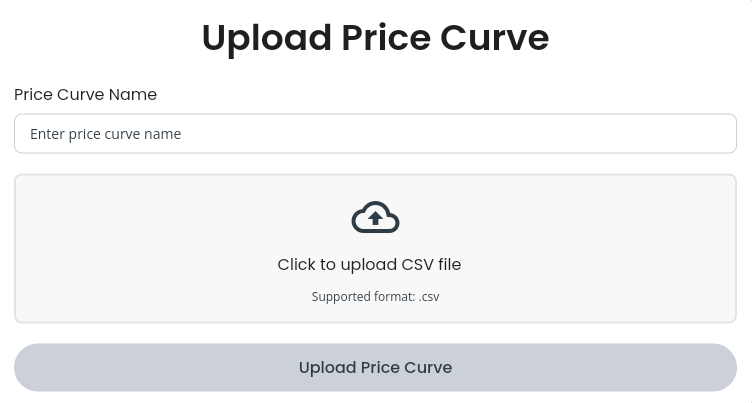
Select your Price Index CSV and select Upload.
The updated file will appear in the Price Index list after a short amount of time.
Updating a Price Index
Navigate to the Price Index home page
Find your price index file and select the Update Data

Upload the new file, the existing price index will be updated after a short time.
Any rate sets which reference a price index, will always use the latest version of the price index.
Referencing a Price Index in a Rate Set
To use a price index as a rate, it must be specified by a Rate Set.
Step 1: Create a rate set
Begin by following the instructions on How to create a rate set
Step 2: Configure the spot rate
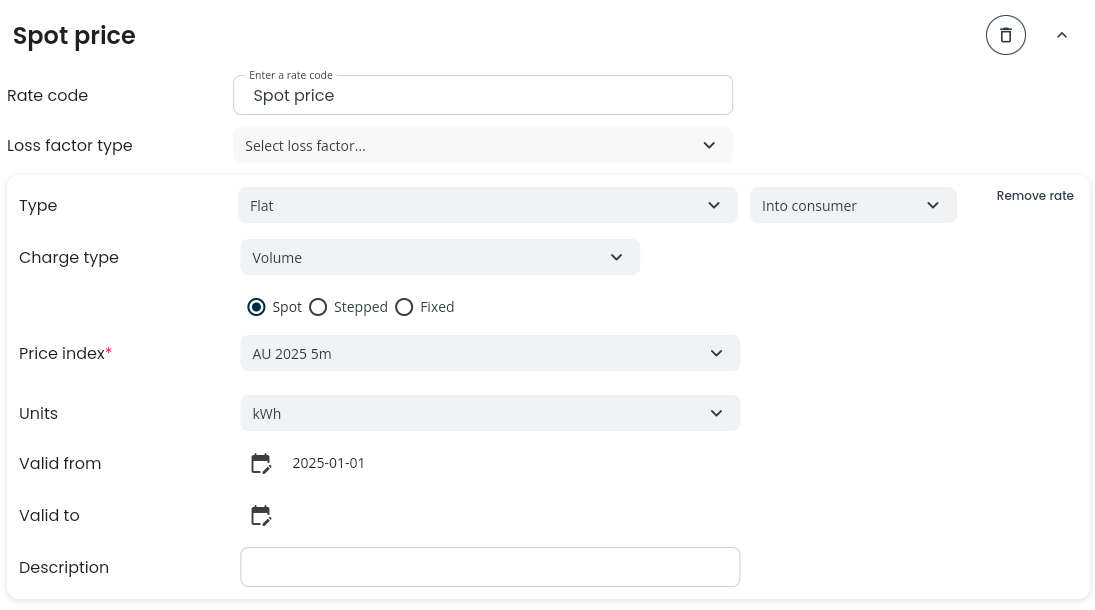
For the rate type select Flat
For the price type, select Spot
Select the desired Price Index from the drop down menu